News, How-Tos, and Articles by geeks for geeks.

Yesterday, WhatsApp unveiled a Google Chrome extension which enables you send and receive WhatsApp messages via the browser. Google Chrome mirrors your conversations and messages right on your computer. Here is how you get it done.

Android

1. Go the Google Play Store and update your WhatApp. If you don't have Play Store on your device, you can get the apk here 


 2. Open Whatsapp and select "WhatsApp Web".


3. Go to https://web.whatsapp.com/ and scan the QR Code on the Website with your phone. Keep trying it doesn't seem to work.


4. Congratulations! You have activated WhatsApp Web and can now use WhatsApp on your computer. :)

Whatsapp Web can also be used Windows Phone, Blackberry and Nokia S60. Sorry but Apple users can't enjoy this service due to the limitations of the iOS. Support for other browsers will be coming soon too! Have a great time using WhatsApp Web!


University of Cape Coast, one of Ghana's top university's website has been hacked. The attack took place on Sunday, 4th January 2015 at about 8:16 AM. The website has been hacked and defaced by an Indian known as "Mr. Bangladesh" and was reported by BD Grey Hat Hackers.

At the moment the website has been taken offline however, a google search on the website gives you a result similar to that in the image below. It read:  "Hello Admin ! Mr. Bangladesh here ! from Bangladesh GREY HAT HACKERS. We Defend || We Revenge. 0000. hacked by Mr. Bangladesh #Contact  ... ". 


You can take a look at a snapshot of the site when it was hacked here. It's a short video of the message to the administrator of the website with background music. Here is the link to UCC's Website.

It's just 4 days into the New Year and we've had our first cyber attack already. Website owners should be expecting more of this to happen and should be prepared.
Best Android smartphones 2014
2014 was a great year in the mobile industry. We saw many new brands and models coming up with very interesting specs and features. Mobile Operating Systems also took a different turn in design and function. In my article today, I bring to you my best 5 phones of 2014.


5. Sony Xperia Z3

Sony Xperia Z3
Xperia Z3 is Sony's latest flagship smartphone released in September 2014. Just as other recent sony smartphones, it has dust and water resistant over 1 Meter and 30 minutes. Xperia Z3 comes with Android 4.4.4 pre-installed, 2.5 GHz processor, 3GB of RAM, and 20 MP rear camera. With other loads of features, Xperia Z3 is a  worth buying.


4. Google Nexus 6

Motorola Nexus 6
If you want a feel of the pure Android Operating System, the you should go for the all new Google Nexus 5. Expertly crafted by Motorola, Nexus 5 bring you not only a feel of the true Android but also impressive hardware specs. Google's latest flagship comes with the Latest Android 5.0, 3GB RAM with 64 GB internal memory, 13MP rear camera with OIS, and a stunning 5.9 inch screen display. This also comes and an amazingly cheap price. 


3. iPhone 6+

Apple iPhone 6 Plus
Finally Apple went back to their drawing boards and brought something everybody was waiting for them to do: A large screen phone. iPhone 6+ features a massive 5.5 inch screen, TouchID sensor, NFC and all the goodies iOS 8 brings. It lacks enough RAM as compared to Android competitors. It has just 1GB RAM. It's a phone you will love to use and it costs about GHc3000.

2. HTC One M8

HTC One (M8)
This is my dream phone. HTC M8. M8 has the following specifications: 4 inch screen with a DPI of 441, Gorilla Glass 3, Android Kitkat 4.4, 2.3 GHz Quad-Core processor, Two 4UP rear cameras, Boom sound, and 32GB internal memory. With about GHc1800, you should be getting a fully functional HTC M8.


1. Galaxy Note 4

Samsung Galaxy Note 4

This is the best phablet of the year 2014. I've had a chance to have a hand's-on this device and I couldn't but admire the QHD Display. Galaxy Note 4 comes with tons and tons of features which include: A heart rate monitor, a UV sensor, an IR Blaster, 16MP rear camera with OIS, Android 4.4.4, and a stunning 4.7 QHD display with Gorilla Glass 4. If you want a phablet with all the power, features, and functions, Note 4 is certainly the phone you should go for. You can watch a review of Galaxy Note 4 at PCAdvisor.


I'm looking towards a great 2015 with new, powerful and feature-loaded devices. Not only with great specs but cheap...very cheap. 


VLC Player is the most popular (if not one of the most popular) media player in the world. It's interesting to find out that, majority of its users only use it to watch videos and play music but there's much more you can do with it. I take my turn in this article to show you how you can stream (both video and audio) with VLC.

Streaming with VLC comes in two parts: You can either stream to a another location or stream from an existing service. We're going to see how to stream from an existing service notably Youtube.

Streaming With VLC Player

Step 1: Open VLC Player. If you don't have it download it here. 


Step 2: Select "Open Network Stream" from the "Media" option in the menu bar. You can also use 
the shortcut keys "Ctrl + N".


Step 3: Select the "Network" tab and enter the address to the resource you want to stream. In my situation I will use the link to a Youtube video. Click on Play at the buttom of that Window and wait for it to load. 


Step 4: Profit!!! You have succesfully streamed with VLC :)


I have added a a link to a text file with many streaming services worldwide you can try. Click HERE.


Google has made being unable to connect to the Internet a little less annoying by replacing the error page with an interesting game. If you open latest version of Google Chrome, and can't get online, instead of the usual page telling you you can't connect, you'll see this guy, the Google Chrome dinosaur that always arrives with Internet problems. 
Instead of just having that a static page error page, leaving you with nothing to do, just hit the space bar and the Tyrannosaurus Rex will start an endless runner style video game which I call "Desert Run". T-Rex runs through a desert and you make him jump over the many cacti he encounters. The longer you play, the faster the he runs. You are celebrated for every hundred points you earn and if you lose, just hit the space bar to start again.

To take a look at the game play, you the video below and don't forget to subscribe!

nokia n1 (1)


Mobile phone company, Nokia has just introduced the N1, a brand new (iPad mini clone) tablet running Android. 
nokia n1 (4)
  • Aluminum design
  • 7.9-inch laminated display
  • 64-bit quad-core Intel Atom Z358
  • 2GB RAM
  • 32GB Internal storage
  • 8MP rear camera
  • 5MP front-facing camera
  • Android 5.0 Lollipop
  • 5,300 mAh battery

nokia n1 (2)nokia n1 (5)
The Nokia N1 will cost $250 and launch in China initially, starting in February. 

When your PC starts its steady decline into slow speeds, the first thing you’d love to do is head straight fancy new machine. The reality is there are easy changes you can make to speed up your computer. Below are some of the best tips for speeding up your PC.
  1. Turn off Startup Programs

When you install a program in Windows, it may add itself up to the startup register and runs when Windows starts. After installing a lot of software, your boot up process could become considerably slow. If there are programs you don’t use much, they probably don’t need to start every time Windows does. You can disable startup programs manually or use the free tool CCleaner.
MSConfig can be used to configure startup programs and a few other settings. Just follow the steps in this article and you should be fine.

To run MSConfig, open the Start menu and type “msconfig.exe” (without the quotes) in the Search box. As you type, results display. When you see “msconfig.exe,” click on it or press Enter, if it is highlighted.
NOTE: You can open the Run dialog box from the Start menu, type “msconfig.exe” in the Open edit box, and click OK.
01_starting_msconfig


Click the Startup tab on the System Configuration main window. A list of all the startup programs displays with a check box next to each one. To prevent a program from starting up with Windows, select the checkbox next to the desired program so there is NO checkmark in the box. Click OK once you have made your choices.
02_turning_off_startup_programs
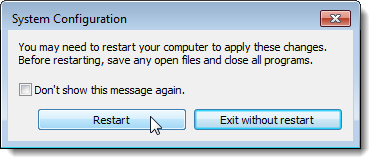
A dialog box displays telling you that you may need to restart your computer for the changes to take affect. Click Restart to restart your computer immediately. If are not ready to restart your computer, click Exit without restart.
03_restart_dialog
Disabling Startup Programs in Windows 8 or 8.1
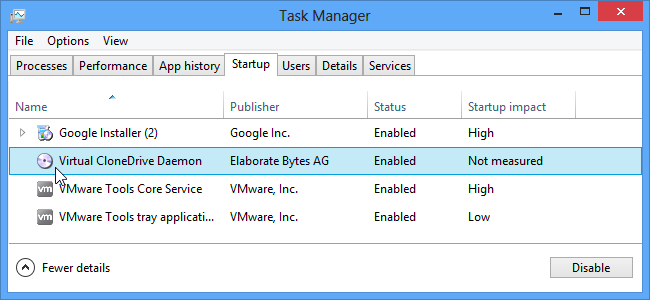
Windows 8 and 8.1 make it really simple to disable startup applications. All you have to do is open up Task Manager by right-clicking on the Taskbar, or using the CTRL + SHIFT + ESC shortcut key, clicking “More Details”, switching to the Startup tab, and then using the Disable button.
It’s really that simple. If you aren’t seeing these options, make sure to click “More Details”, which is in the same place as the “Fewer details” that you see on this screenshot.

Additionally, use the services tab in the msconfig utility to disable the services you don’t you want to execute when the computer starts up. Be careful what you disable since you could prevent critical system programs from starting up. Check the “Hide Microsoft Services” before you disable the services.

  1. Clean Up Unnecessary Files on Your Computer


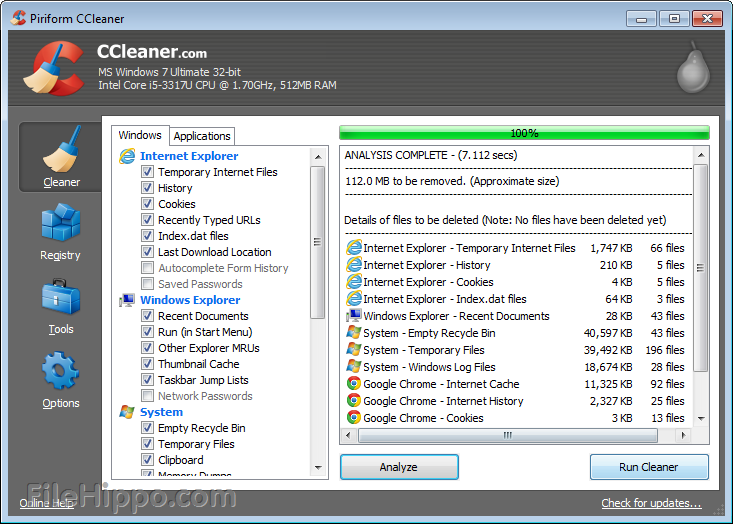
As you use your computer, files collect in all kinds of places. Windows and programs running in Windows create temporary files and log files. Files you have deleted may collect in the Recycle Bin, if you don’t empty it often. When you browse the internet, browsers create temporary files, sites put cookies on your computer, and the download history and form history grows. CCleaner can help you clean up your computer. You can even set up CCleaner to automatically run on a schedule.

To clean your PC:

  1. In CCleaner, click the Cleaner icon at left.
  2. Choose the Windows features you want to clean by selecting their check boxes (you can clean everything under Internet Explorer, for example, by selecting the checkbox next to the heading). When you select or clear certain options, warning text will appear. Read the text and click OK to dismiss the dialog box.Click the Applications tab. The programs listed on this tab will depend on the software you have installed on the system.
  3. Choose the applications or features you want to clean.
  4. Click the Analyze button. CCleaner analyzes the files and Registry keys belonging to the Windows features and applications you have selected. This may take some time.
  5. Once the analysis is complete, you can review which files will be deleted in the text window. To save the list of items to be deleted, right-click in the text window and then click Save to text file... To clean an item right from the analysis list, right-click the item and then click Clean.
  6. Click Run Cleaner. You are warned that CCleaner is about to permanently remove files from the system. Click OK to proceed.
  7. When the cleaning is complete, CCleaner displays a report of deleted files in the text window. To save the list, right-click in the text window and then click Save to text file...
NOTE: Click here to read more on how use CCleaner to clean up the junk in your PC. Stay away from other softwares that claim to boost and speed up your PC (e.g. Registry Cleaner).

  1. Remove Malware, Spyware, and Adware

Malware, spyware, or adware are your computers worst enemy. They significantly affect its performance. Malware such as viruses eat up your RAM, replicate on your hard disk and utilizes a processor. Adwares and spywares make utilize the network resources and makes you internet. There are many utilities such as Malwarebytes, SpyBot AV and adwcleaner. My very favourite is Microsoft’s Free Microsoft Security Essentials which appears in Windows 8.x as Windows Defender.


  1. Uninstall, Uninstall and Uninstall!


A clean machine is a fast machine. That means your best option is to uninstall all the programs you don't use. Delete things like trial software, limited-edition versions, and anything else you're never going to use.
To uninstall software:
  • Click the Start button , and then click Control Panel.
  • Under Programs, click Uninstall a program. (If you don't see this page, change the View by option in the upper-right corner to Category.)

  • Click the program you want to delete, and then click Uninstall.


  1. Use Portable Apps

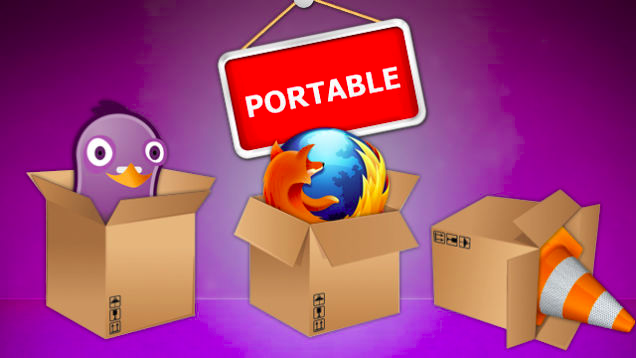
We are used to installing every application we need to use in Windows. Sometimes, these apps clog up the registry and use a lot of disk space and memory. Using Portable Apps, you can install an app once, have all of the necessary files in one place, and even sync the app and its settings across different machines with Dropbox.
The idea is that you can run these portable apps from a flash drive, thus taking your favorite browser or password program with you without having to install it on a computer that isn't yours. This reduces the number of installed applications on your PC and boosts performance. Portable Apps include Firefox, Google Chrome, uTorrent, VLC and VirtualBox. You can grab your copy of portable apps here.
  1. Thoroughly Clean Your Computer

The fan in your computer that draws in air to cool. Dirt clogging up in your system can block clean, cool air from circulating within the computer and this can cause your system to overheat and run sluggishly and maybe even eventually break down. It will be most advisable to take your PC to your nearest Tech Specialist for it to be cleaned up or if you feel you’re tech savvy enough, a few searches on Google will teach you how to do that.


Now, your Windows PC can be faster and more efficient when working or goofing off!

Popular Posts

More

Search This Blog

Most Trending