Today Google rolled out Android 5.1 - an update to Lollipop that improves stability and performance and offers a few new features like support for multiple SIM cards, Device Protection and high definition (HD) voice on compatible phones.
Features:Whether you want to share your phone with a family member or better manage your mobile costs, Android Lollipop 5.1 now lets you use more than one SIM card on a device with multiple SIM slots. With Device Protection, your lost or stolen device will remain locked until you sign in with your Google account - even if someone resets your device to factory settings. This feature will be available on most Android phones and tablets shipped with Android 5.1 in addition to Nexus 6 and Nexus 9. High Definition voice calling is now on your mobile phone. Get crystal clear calling with HD Voice between compatible Android 5.1 devices like the Nexus 6 on T-Mobile or Verizon. Android 5.1 Lollipop also provides enhancements such as the ability to join Wi-Fi networks and control of your paired Bluetooth devices directly from Quick Settings. Enjoy these tasty additions to Android Lollipop as you get more out of your Android phone and tablet.
Hello iPhone Users! It's been a while since I posted something for you. Today I'm going to show you how to use USSD codes with your iPhone. This guide will show you how to use USSD codes on iPhones with R-SIMS or GPP's that normally can't use such codes. This guide works for iOS7.x and iOS 8.x. You first need to make sure you have jail broken your device. A few google searches on how to jailbreak your phone will lead you to jailbreak your phone. Lets head over to the steps...
Fix For iOS 8.x
Jailbreak your iPhone.
Open Cydia and install iFile. If you can't find it, add the repository http://apt.thebigboss.org/repofiles/cydia/to your sources.
Add the repository http://cydia.myrepospace/com/applelab to your sources.
Search for and install "CommCenter patch iOS8" from cydia.
Open iFile and browse to /System/Library/Carrier Bundles/iPhone/Default.bundle.
Click on carrier.plst and open with "Viewer Property List".
Turn ON "SuppertsSupplementaryServices" and click done.
Reboot your iPhone.
Fix For iOS 7.x
The process remains the same but with a few variations.
Add the repository http://apt.chinasnow.net.
Search for and install "CommCenter patch for iOS7"
Voila! Try any USSD code for your network and enjoy working USSD requests
Pushbullet is one of my favorite Android apps. It enables you to push links, notes, images... between your devices and contacts seamlessly and also pushes your notifications from your devices right into your Chrome browser.
With earlier versions of Pushbullet, it was able to reply text messages but not messages from other apps like WhatsApp - You had to use a root app called Quick Reply for Pushbullet before you were able to reply your WhatsApp messages.
In the latest update, it's now possible to reply messages from WhatsApp, Hangouts and a bunch of other messaging apps right from the pushbullet notification from your computer (with the Pushbullet Chrome app installed on it). Even though WhatsApp Web, Viber for Desktop and Hangouts Web are currently available, this new update still makes pushbullet the best alternative to these apps since you don't need to visit separate website to access different services.
You can visit the Play Store to download the latest version of Pushbullet. See the replying in action in this video.
I realized how frustrating it is to see ads in your favorite Android apps, no wonder I decided to make an article for this. After trying many alternatives, I finally found an Android app which helped me get rid of ads...for life.
AdAway is a free, open source ad blocker application for Android devices. It blocks banners, pop-ups, and even video ads on Facebook and YouTube. AdAway works by using the hosts file - The hosts file contains a list of mapping between hostnames (websites) and their respective IP addresses. When an app requests an ad, the request is directed to the loopback address 127.0.0.1 which does nothing and hence no ad is displayed.
Unfortunately, AdAway is not on the Play Store as Google is against the use of ad blockers. You need to sideload this application in order for it to work. Here are the steps:
Locate the downloaded file with your file manager and install it. You can go to settings>security and enable "unknown sources" if your installation is being blocked.
Open the app and select "Download files and apply ad blocking"
Reboot the phone once you are notified that the ad blocker has been enabled.
Voila! You will now enjoy and ad free experience.
There are are options to add host sources to the existing list, edit the hosts files, redirect IP addresses and much more.
Another great alternative to AdAway is Adblock Plus.
NB: This application requires root and will NOT work if you are not rooted.
Contact me if you want to root your phone or you can also make a Google search on how to root your phone
NB: Proceed at your own risk
If you want to have a feel of the much anticipated WhatsApp call feature, you're at the right place. Follow these steps carefully and you're good to go!
REQUIREMENTS:
A rooted Android Phone
A root file manager
Latest WhatsApp.apk (which you can download from the Play Store or WhatsApp website.
Someone with WhatsApp feature active to call you. (This works like an invite system)
Steps:
Install the latest version on WhatsApp.
Open your root file manager (I prefer root explorer) and navigate to /data/data/com.whatsapp/shared_prefs/com.whatsapp_preferences.xml
Add this lines in the file between the "<map></map> tag. "<boolean name="call" value="true" /> "<string name="call_allowed">all</string>
Save and exit the root browser.
Go to Settings>Applications>WhatsApp and force stop it
Open WhatsApp again
Once you receive a call from someone with this feature enabled, you can now make WhatsApp calls too!
In my last post I talked about how WhatsApp plus users were forced to uninstall the app and install the official version from the Play Store. Well, the WhatsApp alternative is back again! The new 6.76 update enables you to use Plus without getting banned. Follow these instructions to install.
1. Download WhatsApp Plus 6.76 here.
2. Go to WhatsApp settings and back up all your conversations.
3. Go to your phone settings and uninstall the official WhatsApp app
4. Still in the phone settings enable from "Unknown Sources".
5. Open your file manager and install WhatsApp Plus
6. Go through the rest of the set up.
Congrats... You have successfully install WhatsApp Plus...no worries of being banned again (for now)!
Microsoft made a few huge announcements yesterday, notable among them was the introduction of Windows 10. I was impressed with the fact that, finally, Windows 10 will work across all available platforms, from the PC to your tablet and to your phone.
While Windows 8.x is still the prevalent desktop OS, Microsoft has had to rely on a separate OS altogether for mobile. Windows Phone 8.1 is the current iteration, found mostly on Nokia devices, and a small selection of HTC and other brands.
Windows 10 is a new approach, the same OS is capable of installing on the various devices, where it offers a differing UI for each form factor. From what Microsoft showed off in their announcement, the phone UI brings with it the typical functionality we have all come to expect from our mobile devices. Home screens, settings menus, a phone book, a web browser and more.
What’s New?
Windows 10 will rock a new web browser, code named Project Spartan.Cortana, Microsofts Digital Assistantis a huge element to the new OS. Universal Apps make for a consistent experience across devices. Action Center eases settings control and syncs data and notifications across devices. Expanded Xbox integration goes beyond sharing game clips, streaming full games to your Windows 10 PC or tablet.
Your photos will show together in the Photos app, they will be automatically organized into sections and albums. An all new synchronization technology available on your Windows 10 phone in the Action Center. As is true for Google+users, you’ll be able to get to your full photo collection regardless the device you are using.
A new messaging app seamlessly jumps between your SMS and IM communications, with Skype integration bringing video to the mix.
Yesterday, WhatsApp unveiled a Google Chrome extension which enables you send and receive WhatsApp messages via the browser. Google Chrome mirrors your conversations and messages right on your computer. Here is how you get it done.
Android
1. Go the Google Play Store and update your WhatApp. If you don't have Play Store on your device, you can get the apk here
2. Open Whatsapp and select "WhatsApp Web".
3. Go to https://web.whatsapp.com/ and scan the QR Code on the Website with your phone. Keep trying it doesn't seem to work.
4. Congratulations! You have activated WhatsApp Web and can now use WhatsApp on your computer. :)
Whatsapp Web can also be used Windows Phone, Blackberry and Nokia S60. Sorry but Apple users can't enjoy this service due to the limitations of the iOS. Support for other browsers will be coming soon too! Have a great time using WhatsApp Web!
University of Cape Coast, one of Ghana's top university's website has been hacked. The attack took place on Sunday, 4th January 2015 at about 8:16 AM. The website has been hacked and defaced by an Indian known as "Mr. Bangladesh" and was reported by BD Grey Hat Hackers. At the moment the website has been taken offline however, a google search on the website gives you a result similar to that in the image below. It read: "Hello Admin ! Mr. Bangladesh here ! from Bangladesh GREY HAT HACKERS. We Defend || We Revenge. 0000. hacked by Mr. Bangladesh #Contact ...".
You can take a look at a snapshot of the site when it was hacked here. It's a short video of the message to the administrator of the website with background music. Here is the link to UCC's Website. It's just 4 days into the New Year and we've had our first cyber attack already. Website owners should be expecting more of this to happen and should be prepared.
2014 was a great year in the mobile industry. We saw many new brands and models coming up with very interesting specs and features. Mobile Operating Systems also took a different turn in design and function. In my article today, I bring to you my best 5 phones of 2014.
5. Sony Xperia Z3
Xperia Z3 is Sony's latest flagship smartphone released in September 2014. Just as other recent sony smartphones, it has dust and water resistant over 1 Meter and 30 minutes. Xperia Z3 comes with Android 4.4.4 pre-installed, 2.5 GHz processor, 3GB of RAM, and 20 MP rear camera. With other loads of features, Xperia Z3 is a worth buying.
4. Google Nexus 6
If you want a feel of the pure Android Operating System, the you should go for the all new Google Nexus 5. Expertly crafted by Motorola, Nexus 5 bring you not only a feel of the true Android but also impressive hardware specs. Google's latest flagship comes with the Latest Android 5.0, 3GB RAM with 64 GB internal memory, 13MP rear camera with OIS, and a stunning 5.9 inch screen display. This also comes and an amazingly cheap price.
3. iPhone 6+
Finally Apple went back to their drawing boards and brought something everybody was waiting for them to do: A large screen phone. iPhone 6+ features a massive 5.5 inch screen, TouchID sensor, NFC and all the goodies iOS 8 brings. It lacks enough RAM as compared to Android competitors. It has just 1GB RAM. It's a phone you will love to use and it costs about GHc3000.
2. HTC One M8
This is my dream phone. HTC M8. M8 has the following specifications: 4 inch screen with a DPI of 441, Gorilla Glass 3, Android Kitkat 4.4, 2.3 GHz Quad-Core processor, Two 4UP rear cameras, Boom sound, and 32GB internal memory. With about GHc1800, you should be getting a fully functional HTC M8.
1. Galaxy Note 4
This is the best phablet of the year 2014. I've had a chance to have a hand's-on this device and I couldn't but admire the QHD Display. Galaxy Note 4 comes with tons and tons of features which include: A heart rate monitor, a UV sensor, an IR Blaster, 16MP rear camera with OIS, Android 4.4.4, and a stunning 4.7 QHD display with Gorilla Glass 4. If you want a phablet with all the power, features, and functions, Note 4 is certainly the phone you should go for. You can watch a review of Galaxy Note 4 at PCAdvisor.
I'm looking towards a great 2015 with new, powerful and feature-loaded devices. Not only with great specs but cheap...very cheap.
VLC Player is the most popular (if not one of the most popular) media player in the world. It's interesting to find out that, majority of its users only use it to watch videos and play music but there's much more you can do with it. I take my turn in this article to show you how you can stream (both video and audio) with VLC.
Streaming with VLC comes in two parts: You can either stream to a another location or stream from an existing service. We're going to see how to stream from an existing service notably Youtube.
Streaming With VLC Player
Step 1: Open VLC Player. If you don't have it download it here.
Step 2: Select "Open Network Stream" from the "Media" option in the menu bar. You can also use
the shortcut keys "Ctrl + N".
Step 3: Select the "Network" tab and enter the address to the resource you want to stream. In my situation I will use the link to a Youtube video. Click on Play at the buttom of that Window and wait for it to load.
Step 4: Profit!!! You have succesfully streamed with VLC :)
I have added a a link to a text file with many streaming services worldwide you can try. Click HERE.
Google has made being unable to connect to the Internet a little less annoying by replacing the error page with an interesting game. If you open latest version of Google Chrome, and can't get online, instead of the usual page telling you you can't connect, you'll see this guy, the Google Chrome dinosaur that always arrives with Internet problems.
Instead of just having that a static page error page, leaving you with nothing to do, just hit the space bar and the Tyrannosaurus Rex will start an endless runner style video game which I call "Desert Run". T-Rex runs through a desert and you make him jump over the many cacti he encounters. The longer you play, the faster the he runs. You are celebrated for every hundred points you earn and if you lose, just hit the space bar to start again.
To take a look at the game play, you the video below and don't forget to subscribe!
Mobile phone company, Nokia has just introduced the N1, a brand new (iPad mini clone) tablet running Android.
The Nokia N1 will cost $250 and launch in China initially, starting in February.
When your PC starts its steady decline into slow speeds, the first thing you’d love to do is head straight fancy new machine. The reality is there are easy changes you can make to speed up your computer. Below are some of the best tips for speeding up your PC.
Turn off Startup Programs
When you install a program in Windows, it may add itself up to the startup register and runs when Windows starts. After installing a lot of software, your boot up process could become considerably slow. If there are programs you don’t use much, they probably don’t need to start every time Windows does. You can disable startup programs manually or use the free tool CCleaner.
MSConfig can be used to configure startup programs and a few other settings. Just follow the steps in this article and you should be fine.
To run MSConfig, open the Start menu and type “msconfig.exe” (without the quotes) in the Search box. As you type, results display. When you see “msconfig.exe,” click on it or press Enter, if it is highlighted.
NOTE: You can open the Run dialog box from the Start menu, type “msconfig.exe” in the Open edit box, and click OK.
Click the Startup tab on the System Configuration main window. A list of all the startup programs displays with a check box next to each one. To prevent a program from starting up with Windows, select the checkbox next to the desired program so there is NO checkmark in the box. Click OK once you have made your choices.
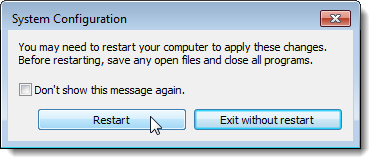
A dialog box displays telling you that you may need to restart your computer for the changes to take affect. Click Restart to restart your computer immediately. If are not ready to restart your computer, click Exit without restart.
Disabling Startup Programs in Windows 8 or 8.1
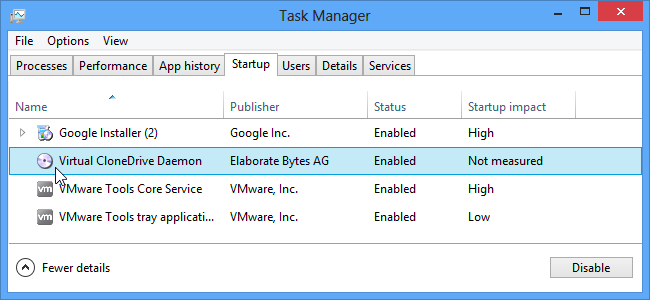
Windows 8 and 8.1 make it really simple to disable startup applications. All you have to do is open up Task Manager by right-clicking on the Taskbar, or using the CTRL + SHIFT + ESC shortcut key, clicking “More Details”, switching to the Startup tab, and then using the Disable button.
It’s really that simple. If you aren’t seeing these options, make sure to click “More Details”, which is in the same place as the “Fewer details” that you see on this screenshot.
Additionally, use the services tab in the msconfig utility to disable the services you don’t you want to execute when the computer starts up. Be careful what you disable since you could prevent critical system programs from starting up. Check the “Hide Microsoft Services” before you disable the services.
Clean Up Unnecessary Files on Your Computer
As you use your computer, files collect in all kinds of places. Windows and programs running in Windows create temporary files and log files. Files you have deleted may collect in the Recycle Bin, if you don’t empty it often. When you browse the internet, browsers create temporary files, sites put cookies on your computer, and the download history and form history grows. CCleaner can help you clean up your computer. You can even set up CCleaner to automatically run on a schedule.
To clean your PC:
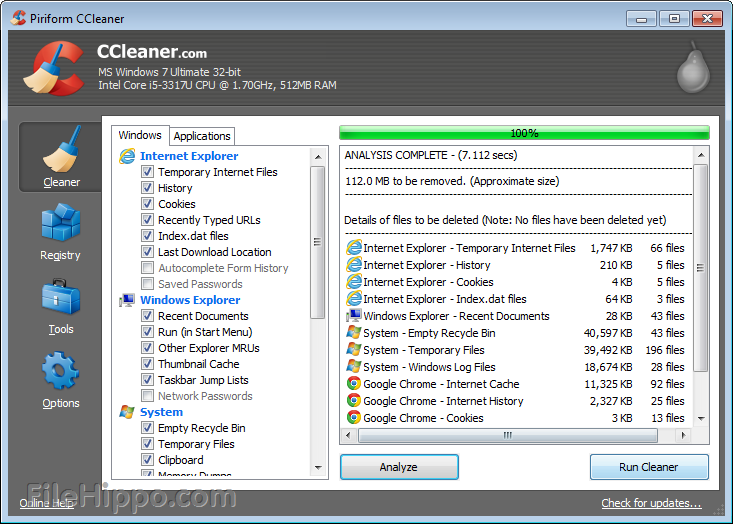
In CCleaner, click the Cleaner icon at left.
Choose the Windows features you want to clean by selecting their check boxes (you can clean everything under Internet Explorer, for example, by selecting the checkbox next to the heading). When you select or clear certain options, warning text will appear. Read the text and click OK to dismiss the dialog box.Click the Applications tab. The programs listed on this tab will depend on the software you have installed on the system.
Choose the applications or features you want to clean.
Click the Analyze button. CCleaner analyzes the files and Registry keys belonging to the Windows features and applications you have selected. This may take some time.
Once the analysis is complete, you can review which files will be deleted in the text window. To save the list of items to be deleted, right-click in the text window and then click Save to text file... To clean an item right from the analysis list, right-click the item and then click Clean.
Click Run Cleaner. You are warned that CCleaner is about to permanently remove files from the system. Click OK to proceed.
When the cleaning is complete, CCleaner displays a report of deleted files in the text window. To save the list, right-click in the text window and then click Save to text file...
NOTE: Click here to read more on how use CCleaner to clean up the junk in your PC. Stay away from other softwares that claim to boost and speed up your PC (e.g. Registry Cleaner).
Remove Malware, Spyware, and Adware
Malware, spyware, or adware are your computers worst enemy. They significantly affect its performance. Malware such as viruses eat up your RAM, replicate on your hard disk and utilizes a processor. Adwares and spywares make utilize the network resources and makes you internet. There are many utilities such as Malwarebytes, SpyBot AV and adwcleaner. My very favourite is Microsoft’s Free Microsoft Security Essentials which appears in Windows 8.x as Windows Defender.
Uninstall, Uninstall and Uninstall!
A clean machine is a fast machine. That means your best option is to uninstall all the programs you don't use. Delete things like trial software, limited-edition versions, and anything else you're never going to use.
To uninstall software:
Click the Start button , and then click Control Panel.
Under Programs, click Uninstall a program. (If you don't see this page, change the View by option in the upper-right corner to Category.)
Click the program you want to delete, and then click Uninstall.
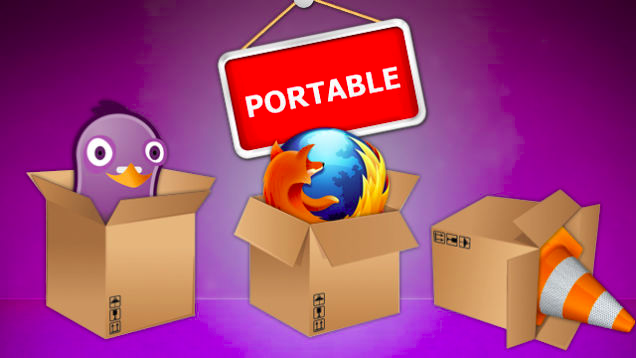
Use Portable Apps
We are used to installing every application we need to use in Windows. Sometimes, these apps clog up the registry and use a lot of disk space and memory. Using Portable Apps, you can install an app once, have all of the necessary files in one place, and even sync the app and its settings across different machines with Dropbox.
The idea is that you can run these portable apps from a flash drive, thus taking your favorite browser or password program with you without having to install it on a computer that isn't yours. This reduces the number of installed applications on your PC and boosts performance. Portable Apps include Firefox, Google Chrome, uTorrent, VLC and VirtualBox. You can grab your copy of portable apps here.
Thoroughly Clean Your Computer
The fan in your computer that draws in air to cool. Dirt clogging up in your system can block clean, cool air from circulating within the computer and this can cause your system to overheat and run sluggishly and maybe even eventually break down. It will be most advisable to take your PC to your nearest Tech Specialist for it to be cleaned up or if you feel you’re tech savvy enough, a few searches on Google will teach you how to do that.
Now, your Windows PC can be faster and more efficient when working or goofing off!
MTN claims “The Ghana’s largest and fastest 3.75G network,” and Tigo says it has “Ghana’s fastest 3.75G network.” Airtel too boasts “Ghana’s fastest 3.75G network,” and now Surfline says it has the first and fastest 4G LTE network in the country.
Now that we are at the end of the Surfline “wow-erful” promotion, we ask; What does 4G LTE and its related terms really mean, and how much faster is a 4G network?
What actually Do The “G’s” Mean?
There are no “official” definitions for 1G, 2G, 3G… but G has come to stand for generation. They can be considered as a segregation of similar generation mobile phone technologies, which have enough acronyms to confuse a normal cell phone user. All these G’s are however GSM(Global System for Mobile Communications) technologies.
What is 4G?
4G(Fourth Generation) is the fourth and latest generation technology for data access over cellular networks. It’s faster and can give networks more capacity than the 3G networks still utilised by most phones. There’s a technical definition, set by a United Nations agency in Europe, and a marketing definition, which is more relevant to most consumers. Variants of 4G technology include LTE and Wimax.
Differences in Speed & Frequencies
4G is quicker than 3G which means less buffering times, better audio quality, improved gaming experience and streaming services.
Differences in Latency
Latency is a measure of the time it takes for data to travel from a PC/Mobile to the internet and back. On 4G that time is around half that experienced on current 3G networks meaning real-time applications like video conferencing, internet gaming and cloud-based streaming services work better with less buffering and fewer interruptions.
Who needs 4G?
It’s mostly for people with smartphones, tablets and laptops who often need fast data speeds for Web browsing, app use and email when they’re out of the range of Wi-Fi networks. It can give you the same or greater data speeds as home or office Wi-Fi when you’re in a taxi, hotels and airports. You are also likely to find this to be often faster than public Wi-Fi networks.
How does 4G differ from another term being advertised, ‘LTE’?
LTE, which stands for “Long Term Evolution,” it is the fastest, most consistent variant of 4G, and the one most technical experts feel hews most closely to the technical standard set by the U.N. In Africa, it has primarily been deployed by MTN and Smile, which offers it in about 6 countries including Nigeria and South Africa.
How fast is 4G?
Claims vary and performance depends upon the type of device and its Operating System, location, and time. In my tests, 4G data modems provided by Surfline for laptops typically deliver from three to 20 times the download speeds of 3G devices. . The speed king is LTE. The other forms of 4G have generally produced download speeds over 10 mbps. But all of these are better than 3G, which in my tests on all networks and many devices, averages download speeds under 2mbps.
How does LTE compare with common wired home Internet speeds?
Although it is wireless, LTE is often faster than most Ghanaians broadband home Internet service. Vodafone claims they provide the fastest 40 mbps (shared) broadband service in West Africa. However in the test I conducted (provided in the image below) I had download speeds moving up to 6.84 mbps.
Shared networks offer less speed than typically advertised and interestingly the real applicable download speeds aside from tests can be between 700 kbps and 1 mbps.
Yes, this was a completely legit download
Speed Comparisons
I decided to test the speeds of both Surfline and Vodafone Broadband and the results were quite interesting. The test was conducted in two folds. A theoretical speed using speedtest.net and a real application speed test by downloading the same file from the internet. The results are depicted in the images below.
Surfline had theoretical speeds between 8.67mbs and 12.37 mbs and application speeds at about 1.74 mbs. To be fair, I have previously come across download speeds of about 2mbs!
On the other hand in the test I conducted at Vodafone Cafe at Osu, Vodafone resulted in a speed test rating of 71.94 mbs. But with the real application downloads I had speeds of between 2.5-4.0 mbs.
How does LTE compare with Wi-Fi?
Wi-Fi is usually a wireless broadcast of a wired Internet service, so if the average broadband speed in Ghana is 5.13 mbps, that’s around what the average Wi-Fi speed is. But, in public places, the shared Wi-Fi is often much, much slower than LTE. In tests I did at Busy Internet at Kwame Nkrumah Circle as well as other internet cafes, the public Wi-Fi networks delivered well under 500 kbps on my Acer Aspire notebook. But the Surfline LTE cellular network on the notebook averaged over 1 mbps in both places. I was pretty impressed at the speeds I had after comparing Vodafone broadband and Surflines 4G LTE network.
Is LTE only faster at downloads? What about uploads?
In my experience it’s faster than 3G at doing both. The screen shots tell the whole story.
Will these speeds drop as more people adopt LTE?
Probably, but it’s hard to say by how much, since LTE also offers more capacity, as well as speed. Nonetheless as Surfline is a shared network and not a dedicated network, the speed may be throttled in order to enable every user enjoy a stable speed. So it’s quite possible for speeds to drop as more people join but this should be insignificant.
What does LTE cost?
I was amazed when I saw the prices for Surfline’s internet. 1GB of data is as low as GH¢25 and 50GB costing GH¢445. This is quite expensive compared to Vodafone’s broadband which costs about GH¢400 for 500GB. However it’s worth the price for a mobile service in that you get almost the same speed (and sometimes much faster than regular broadband services) at such a price.
If I have an LTE phone or tablet, will I use more data faster than if I have 3G?
Quite possibly. The same amount of content, received at the same quality, won’t use more data on LTE than it does on 3G. However, because LTE is so much faster, users may be tempted to download or stream more data, like video, than with 3G. And they may choose to view higher quality video, which uses more data. Also, some apps and websites, sensing the higher LTE speed, will automatically send down larger data files, especially video.
How does LTE affect voice calls?
It doesn’t. It’s all about data, so far. Voice calls are handled by other, parallel networks. But Surfline and other LTE providers are hoping to move voice traffic to LTE.
What if I have an LTE phone or tablet, but I move to a network without LTE coverage?
On MTN, Tigo, and Airtel, you fall back to a 3.75G network. On Vodafone and Expresso, you fall back to 3.5G, which is a slower 4G network, but still faster than 3G.
Final Remarks
4G(LTE) networks are indeed fast and are an answer to the many calls for better internet services within the country. In due time 3G networks and speeds are going to be a thing of the past. Network speeds are however based conditions such as area of coverage, the device being used and its hardware/software composition, signal strength, and the amount of traffic on the network.
So if you need fast mobile internet, then get on board the 4G train or you can always wait on the 5G train which is fast in development.